
Publish by asking your AI (MCP)
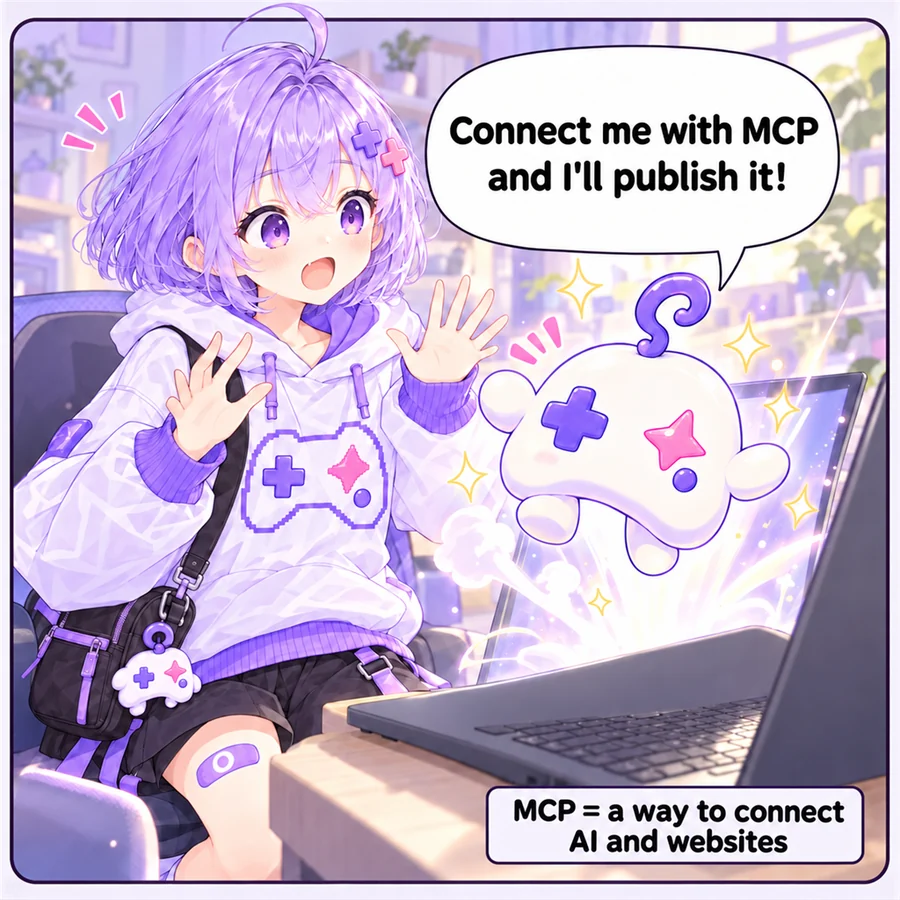
Connect Claude, ChatGPT, Codex and other AI apps, then just ask your AI to publish or update your game.
How to connect
Once connected, just ask your AI to “publish this game”. There are two ways to connect.
- Sign in (recommended): log in from the app and press Allow. This is how the Claude and ChatGPT desktop/web apps connect.
- API token: create one in Settings → API tokens. Handy for CLIs and scripts.
All clients on one page. Send this to an agent such as Claude Code and it will read it and set things up.
Read https://asobiai.games/docs/mcp.md?lang=en and add the Asobiai MCP server to yourself (the AI agent I'm using on this computer). Use OAuth sign-in, and tell me the final sign-in step I need to do.
Claude
Desktop app / webThis app can't be set up by asking the AI — it has to be done in the app's settings. Follow the steps below.
Add a custom connector (sign in)
Sign in- Open Customize → Connectors, then + Add → Add custom connector (on Team / Enterprise an owner adds it from Organization settings → Connectors → Add → Custom → Web)
- Enter "Asobiai" as the name and the URL below, then Continue
- Choose "Sign in now". The Asobiai page opens: log in and press Allow
- In a chat, turn it on from + → Connectors
https://asobiai.games/mcp- ※ The Free plan allows one custom connector.
- ※ Claude connects from Anthropic's cloud, so it can't reach a server that only runs on your computer (localhost).
- ※ Instead of signing in, you can put Authorization: Bearer <API token> in Request headers.
Screens and labels as of 2026-10-20; apps may have changed since.
- publish_game — publish a game (files, title, …)
- update_game — upload a new version / update details
- get_upload_url — a URL (valid 15 min) to PUT a zip of a game with assets; in Claude and ChatGPT chats an upload box also appears where you can drop the files. Then pass upload_id to publish_game / update_game
- set_thumbnail — re-capture the thumbnail, or set an image (URL or base64)
- get_thumbnail_upload_url — a URL (valid 15 min) to PUT a local image file
- get_game — read a game's details (check the making-of notes and more before editing)
- get_game_stats — analytics (plays per day and more; on Pro also countries, referrers, devices and play time)
- get_comments — read comments (by default the ones waiting for your reply)
- reply_to_comment — reply to a comment as the creator (after you approve the text)
- list_my_games — list your games
- list_jams — list game jams; pass jam to publish_game / update_game to enter
- get_game_feedback — fetch open bug reports and ideas
- check_game — open the published game in a real browser and report errors, files that failed to load, a screenshot and the list of served files. Phone sizes, the embedded game page and click/type steps are supported
- test_multiplayer — 2-8 test players join the same room and follow your steps, including sudden disconnects, reconnects and leaving; returns each player's screen, errors and room events
- list_versions / release_version — release a version uploaded with update_game release: false after checking it, or roll back to an older version
For games with images, audio or fonts, zip the folder, PUT it to the URL from get_upload_url, and call publish_game with the returned upload_id — much lighter than base64 files. Limits: 50 MB per game (200 MB on Pro), 25 MB per file, 2000 files, and the zip itself up to 95 MB.
In chat apps where the AI can't run commands (Claude and ChatGPT), get_upload_url shows an upload box in the chat. The index.html the AI wrote is already included and the images and sounds it loads are listed by name: drop files with those names, upload, then press “Ask the AI to publish it”.
Games in a GitHub repository can be published by passing github_repo to publish_game (private repositories and automatic updates on push work too). See Publish from GitHub.
Games published through MCP or the API get a thumbnail automatically: the server takes a screenshot right after publishing. Use set_thumbnail to re-capture it or replace it with your own image.
Agents can close the loop on their own: fetch feedback with get_game_feedback, fix it, ship it with update_game. You can disconnect apps anytime under Settings → Connected apps.